UI Embeddings
Use these layouts when the standard floating widget is not the right fit. Click a picture to jump to its setup.
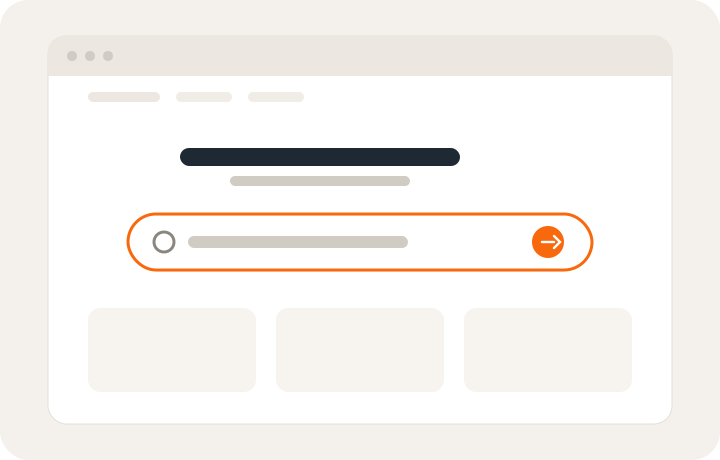 Search bar
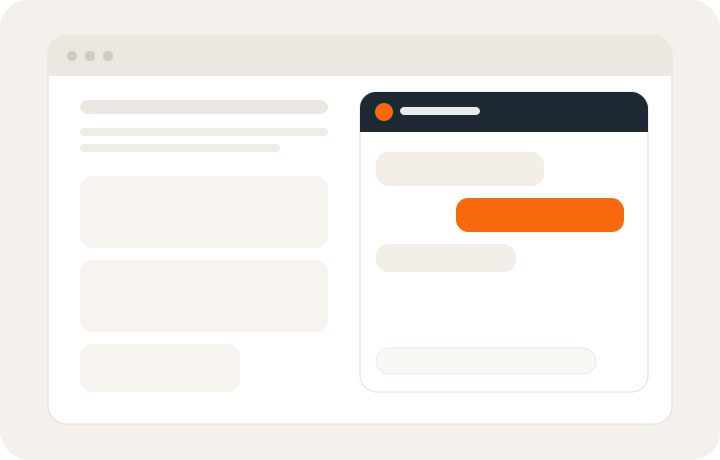 Inline chat
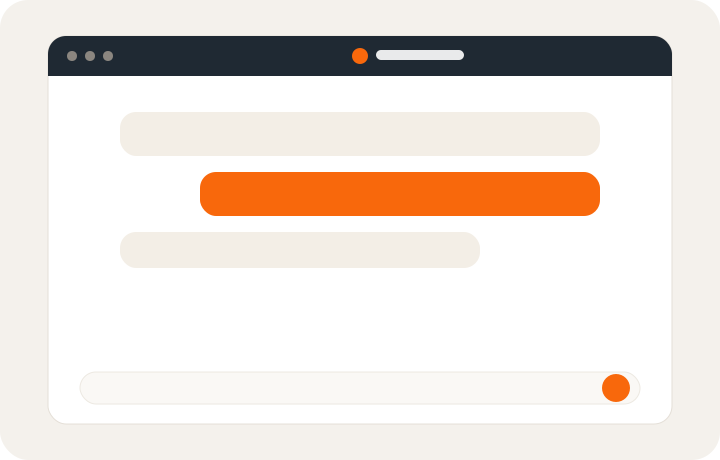 Fullscreen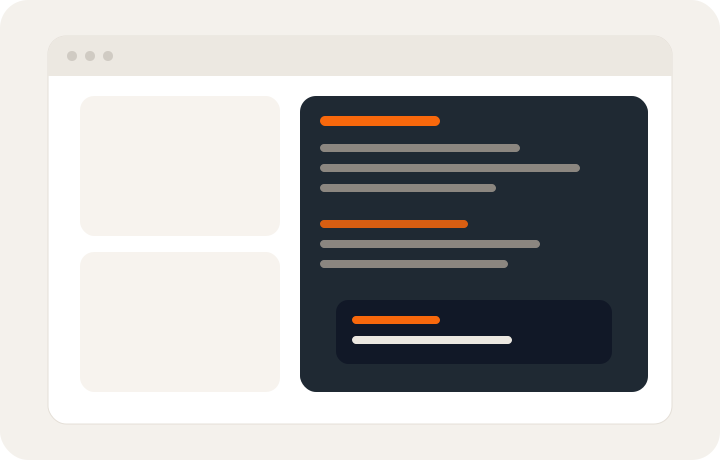
The floating widget script is still required for the search bar. Inline and fullscreen use a separate inline script. If you cache, self-host, or pin these scripts, update the loader and search script together and refresh both caches. The updated search bar stays hidden with an older loader that lacks health subscriptions. This applies to all websites, whether or not they use Shopify.
All these Diverge-owned entry points handle visitor availability and service health automatically, on every website, including sites without Shopify. They collapse while loading, for Bot off, or while the service is unavailable, and recover when it is ready. Already-open conversations keep their messages and existing retry controls during outages. Experiment assignments never change because of service health. For custom buttons or fallback search/contact UI, follow availability and service health.
Search bar
An inline search bar can sit anywhere on the page. When the visitor types a question and presses Enter or clicks send, the floating chatbot opens and receives the message.
The whole search widget hides during an outage and preserves unsubmitted text. It works with
hidden=true on the universal loader; a visible launcher is not required. Use a dedicated,
initially hidden container: the script owns its contents and visibility. Put any normal search
fallback outside that container.
Setup
- Load the search bar script after the chatbot script:
<script src="https://scripts.dialogintelligens.dk/universal-chatbot.js?id=YOUR_CHATBOT_ID"></script>
<script src="https://dialogintelligens.github.io/scripts/inline-search-bar.js"></script>- Add a container where the search bar should appear:
<div class="chatbot-search-widget" data-placeholder="Ask us anything..." hidden></div>Use the same class for more than one search bar on a page:
<div class="chatbot-search-widget" hidden></div>Wrap the query in a sentence
By default the search bar sends exactly what the visitor typed. Use data-message-template to wrap
the query in a fixed sentence so the chatbot gets context. {query} is replaced with whatever they
typed:
<div
class="chatbot-search-widget"
data-placeholder="Search for a product..."
data-message-template='I am looking for sizing help with "{query}", can you help me?'
hidden
></div>A visitor searching for wine makes the chatbot receive:
I am looking for sizing help with "wine", can you help me?If you only need text before and/or after the query, use data-message-prefix and
data-message-suffix instead:
<div
class="chatbot-search-widget"
data-message-prefix="What is the delivery time on "
data-message-suffix="?"
hidden
></div>A visitor searching for wine makes the chatbot receive What is the delivery time on wine?.
Notes:
- Attributes are per widget, so different search bars on the same page can use different sentences.
{query}may appear multiple times in the template — every occurrence is replaced.data-message-templatetakes precedence overdata-message-prefix/data-message-suffixwhen both are set.- If
data-message-templateis set but does not contain{query}, the raw search word is sent and an invalid-template diagnostic is recorded. - All three attributes are optional. With none set, the search bar sends the raw search word.
Manual initialization
<script>
window.initChatbotSearchWidget("#my-custom-element", {
placeholder: "How can we help?",
sendLabel: "Send question",
messageTemplate: 'I am looking for sizing help with "{query}", can you help me?',
sendIconColor: "#333",
borderRadius: "10px",
maxWidth: "500px",
});
</script>messagePrefix and messageSuffix are available here too. Data attributes on the container take
precedence over the config object.
sendLabel (or data-send-label) customizes the send button's accessible name. By default it
uses the page language. Keyboard focus remains visible and reduced-motion preferences are honored.
Inline chat
Use the inline embed when the chatbot should render in the page instead of as a floating widget. Visitors chat without leaving the surrounding content.
Setup
<div id="chatbot-placeholder" data-chatbot-id="YOUR_CHATBOT_ID"></div>
<script src="https://scripts.dialogintelligens.dk/chatbotinline.js?id=YOUR_CHATBOT_ID"></script>If #chatbot-placeholder is missing, the script appends the chatbot next to the script tag.
The unopened embed collapses while unavailable and recovers automatically. Once a conversation
is open, an outage preserves it. The inline embed exposes the same public API and visitor
assignment as the floating loader. Use one chatbot ID per page; duplicate scripts share a runtime.
By default the inline embed starts as a collapsed search-bar landing state. The visitor types a first question, then the in-page chat expands.
Welcome text
Set window.__CHATBOT_INLINE_OVERRIDES__ before loading chatbotinline.js to override
inline-only behavior for that embed instance.
<div id="chatbot-placeholder"></div>
<script>
window.__CHATBOT_INLINE_OVERRIDES__ = {
inlineWelcomeMessage: "How can we help you today?",
};
</script>
<script src="https://scripts.dialogintelligens.dk/chatbotinline.js?id=YOUR_CHATBOT_ID"></script>inlineWelcomeMessage is the text shown above the input before the first question in the
collapsed landing state.
Fullscreen
Fullscreen is the same inline embed, started already in the expanded chat view — with the chatbot's first message shown, instead of the collapsed search field.
<div id="chatbot-placeholder"></div>
<script>
window.__CHATBOT_INLINE_OVERRIDES__ = {
fullscreenStartOpen: true,
};
</script>
<script src="https://scripts.dialogintelligens.dk/chatbotinline.js?id=YOUR_CHATBOT_ID"></script>fullscreenStartOpen defaults to false, so existing inline embeds keep the search-bar-first
behavior.
You can combine it with a custom welcome line:
<div id="chatbot-placeholder"></div>
<script>
window.__CHATBOT_INLINE_OVERRIDES__ = {
inlineWelcomeMessage: "How can we help you today?",
fullscreenStartOpen: true,
};
</script>
<script src="https://scripts.dialogintelligens.dk/chatbotinline.js?id=YOUR_CHATBOT_ID"></script>React components
React components for placing Diverge in your own UI are coming soon. They will let you customize where the chatbot sits in a React app, without dropping in the script layouts above.
Until those components ship:
- Use the floating widget for the standard launcher.
- Use the search bar, inline chat, or fullscreen snippets on this page.
Related reading
- Chatbot Integration — floating widget,
open(), and session metadata - Chatbot Config & Theming — colors and display settings